
What’s Actually Slowing Down Your Sabrent SSD?
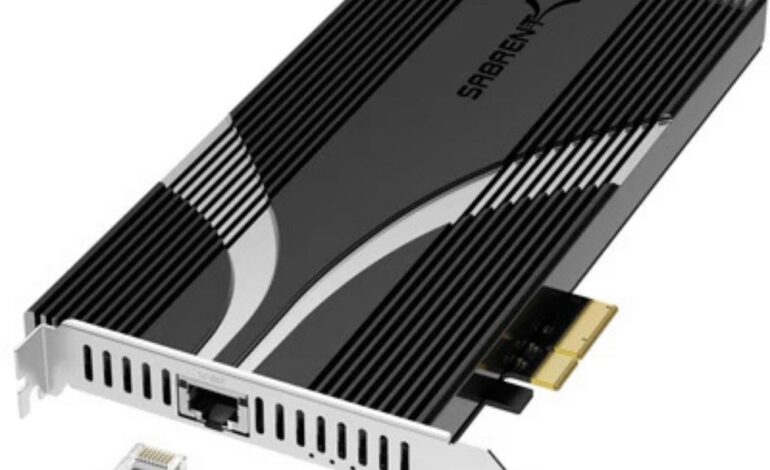
You paid for speed. The packaging promised thousands of megabytes per second. Then you plugged the drive in, dragged over a big folder, and watched the transfer bar move at a pace that had nothing to do with what you bought. So what’s actually going on? In most cases, the drive itself is fine. Something around it is quietly setting the limit.
This is a scenario Sabrent, a brand that makes both the SSDs and the enclosures, docks, and cables that connect them, runs into constantly because it sits on both sides of the problem. A drive’s advertised speed is a best-case number, measured over the ideal connection. Attach a fast NVMe SSD to a slow port, and it never gets the chance to prove that number. The drive didn’t get slower. Everything feeding into it got narrower.
Why a Fast SSD Doesn’t Always Feel Fast
The speed printed on the box is a ceiling, not a guarantee.
Inside a computer, an NVMe SSD communicates over PCIe, which is capable of several thousand megabytes per second. Move that same drive into an external enclosure, though, and it now has to speak whatever language the USB or Thunderbolt connection allows—and that connection has a hard limit of its own. A drive rated for 5,000 MB/s will never touch that number if it’s forced through a connection built for a fraction of that speed. Nothing about the SSD changed. It just lost most of its lanes on the way out.
The Real Suspects Behind a Slow Transfer
A handful of factors sit between the drive and the number on your screen, and whichever one is weakest decides your actual speed.
- The interface types—USB 5Gbps, 10Gbps, 20Gbps, and Thunderbolt—all have very different speed caps
- Your computer’s port—a 10Gbps enclosure plugged into a 5Gbps port will run at 5Gbps, no exceptions
- The cable itself—a mismatched or low-quality cable can silently throttle speed or cause dropouts
- Heat buildup—a drive pushed hard with no cooling will throttle itself to avoid overheating
- File size and file count—copying one large file runs far faster than copying thousands of tiny ones, regardless of how fast the drive is rated
- How full the drive already is—a nearly full SSD has less room to write efficiently and can slow down as free space shrinks
- Background activity—antivirus scans, indexing, or other programs reading and writing at the same time can eat into the speed you’re actually getting
- Outdated firmware or drivers—an enclosure or SSD running old firmware, or a computer with outdated USB/Thunderbolt drivers, can cap speeds well below spec
Only the first item on that list has anything to do with the SSD. Everything else is the setup around it, which explains why two people running the same drive can get completely different results, and a “slow SSD” is almost always a connection problem wearing a drive’s name.
Where Sabrent Actually Comes In
This is the part Sabrent builds its products around, so it’s worth being specific rather than hand-wavy about it.
Because Sabrent makes both halves of the equation — the drives and the enclosures/docks/cables around them — the practical move is pairing them correctly. A Gen 4 NVMe drive needs an enclosure and port capable of keeping pace, whether that means a 10 or 20Gbps USB enclosure or a Thunderbolt option—not a 5Gbps box that quietly caps it at a fraction of its rated speed. Sabrent also builds heatsinks and thermal management into many of its enclosures, since a drive that overheats will slow itself down no matter how fast the interface is. The takeaway isn’t “spend more.” It’s “match the drive to the road it’s travelling on”, so the number you paid for is the number you actually see.
Where the Bottleneck Usually Hides
| Your Setup | What You Actually Get |
| Fast NVMe drive + 5Gbps enclosure | Speed capped well below the drive’s rating |
| Fast drive + fast enclosure + older port | Limited by the port, not the drive or enclosure |
| Right drive + right enclosure + wrong cable | Throttled speed or unreliable connection |
| Fast drive pushed hard, no cooling | Heat throttling mid-transfer |
More Speed Isn’t Always the Right Answer
Worth saying plainly: faster isn’t automatically better for everyone.
If you’re mostly backing up documents or storing photos, a 5Gbps enclosure does the job fine, and paying extra for Thunderbolt is money you’ll never notice a difference from. Speed only becomes worth chasing when your workload actually demands it:
- Everyday backups and file storage—a 5 Gbps connection is plenty; you won’t feel the difference from anything faster
- Photo libraries and document syncing—mid-tier 10 Gbps is comfortable headroom without paying for speed you won’t use
- Large video files or frequent big transfers—this is where 20Gbps or Thunderbolt starts to actually save you real time
- Running applications or games directly off the external drive—you want the fastest interface you can get, since the drive is doing constant, active work rather than a one-off copy
- Multiple people or devices sharing one drive—faster interfaces help here too, since simultaneous access adds up quickly
The goal is matching your setup to how you actually use it: don’t accidentally choke a fast drive when you need the speed, and don’t overpay for headroom you’ll never touch.
A Quick Checklist Before You Blame the Drive
- Check your enclosure’s rated interface speed, and confirm your computer’s port actually matches it
- Use the cable that shipped with the enclosure, or one properly rated for the speed—not a random one from a drawer
- Confirm the drive has a heatsink or cooling if you’re pushing it under heavy, sustained use
- Match your interface choice to your actual workload instead of defaulting to “fastest available.”
Pro Tip
Before buying an external SSD or enclosure, check the actual speed of the port you’ll be plugging into. A 20Gbps enclosure connected to a 5Gbps laptop port still runs at 5Gbps—you’ll have paid for headroom your computer simply cannot deliver. A chain only moves as fast as its weakest link.
Frequently Asked Questions
Q1. Why is my external SSD slower than its advertised speed?
Almost always the connection, not the drive. The rated speed assumes an ideal interface; a slower USB port, enclosure, or cable will cap it well below what the SSD is capable of.
Q2. Does the enclosure really make that much of a difference?
Yes. A fast NVMe drive stuffed into a 5 Gbps enclosure will only ever run at a fraction of its potential—the enclosure’s interface is frequently the actual bottleneck, not the drive inside it.
Q3. How do I figure out what speed I’m really getting?
Look at the weakest link in the chain: your enclosure’s interface, your computer’s port, and your cable. The slowest of the three sets your real-world speed, full stop.
Bottom Line
Next time an SSD feels slower than it should, don’t blame the drive first. More often than not, the SSD is doing exactly what it’s rated to do—it’s the connection around it quietly setting the ceiling: the enclosure, the port, the cable, or heat build-up. That’s the core point behind what Sabrent keeps emphasising—a drive is only as fast as the weakest link it’s plugged into. Match the drive to the right interface, cable, and cooling, and the speed you paid for finally shows up. Skip that step, and even the fastest SSD on the market will sit there underperforming, through no fault of its own.