
How to Change Directory in CMD (Switch Folders Easily)
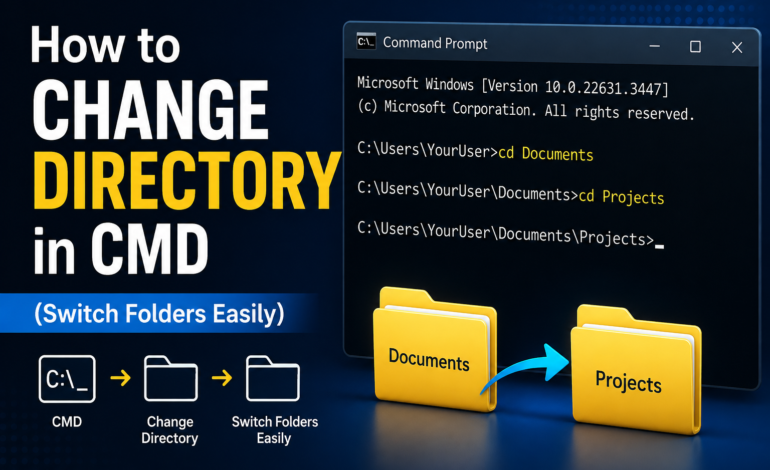
Have you ever needed to move through folders in Windows without using File Explorer and thought, how can I change directory in Command Prompt? For IT managers, cybersecurity professionals, and system administrators, getting this command line skill down can save time and give you precision when troubleshooting, scripting, or managing systems remotely. This article kind of walks through the basics of changing directories in Command Prompt, from simple cd commands to drive switching and those more enterprise-level practices too.
Why should you know the process to change a directory
Knowing how I can change directory in Command Prompt isn’t only about convenience; it’s about control. In cybersecurity and IT management, quick navigation via command line helps you:
- Reach system files for audits or repairs.
- Execute scripts and automate tasks more smoothly.
- Diagnose performance or security issues faster.
- Handle servers and endpoints where a GUI is pretty limited.
With this ability, you get better operational agility across one device and also large networks.
Understanding the basics of the cd command
The cd command, short for Change Directory, is used in Windows Command Prompt to move between folders, or directories if you want the more formal phrase. You point it to the path of the folder you want to open, and then Command Prompt just shifts you there. There are certain important concepts that you need to know before you learn how to change cmd directory:
- Current directory: This is the place where the Command Prompt initially opens.
- Absolute path: The complete folder address (for example, C:\Users\Admin\Documents).
- Relative path: The location based on where you already are (for example, ..\Downloads).
How can you change directories in Command Prompt?
Now that you are familiar with the way Command Prompt works, let’s move forward and learn the steps through which you can easily change a directory in Command Prompt.
- Open the Command Prompt – To start the process, you need to use the Windows + R button to access the command prompt.
- View Current Directory – Now, you are required to enter ‘cd’ to see the current working directory on the screen.
- Move into a different folder – Use the command ‘cd foldername’ to move into a different folder, such as ‘cd Documents’. This allows you to move and change folders in cmd.
- Move back to the previous folder – If you wish to go back to the previous folder, you need to use the command ‘cd ..’.
- Move to the root directory – In case you need to access the root of the drive, then you can use the command ‘cd \’. For example: c: \.
- Switch Drives – If you want to move to drive D: from drive C:, enter only the name of the drive, for example: d:.
These are the steps that you need to stick to when you wish to change directories easily in the command prompt. You can also look up more information on the website Datarecovee regarding the Command Prompt and the important commands you need to know. This informative website ensures that you are equipped with all the basic commands required for proper functioning of your device.
Read more interesting blogs here: https://proaiarticles.com/